

Back
For professionals
Calendar and schedule
Add a client
Add a client
Your client list keeps contact details, notes, and history for everyone you serve.
-
Go to Clients from the main menu and click Add.
Go to Clients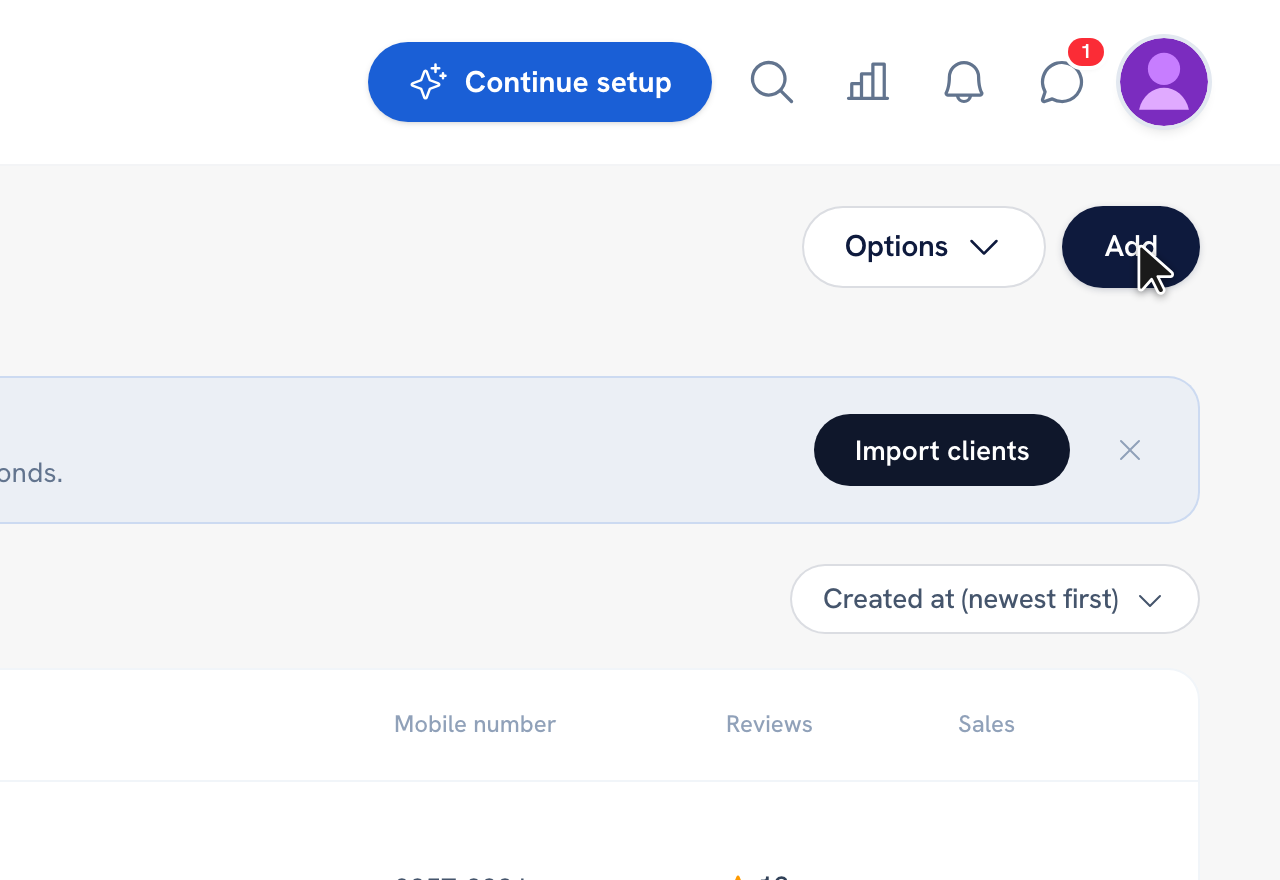
-
Fill in the client's first name — the only required field — plus any last name, email, phone, and birthday.
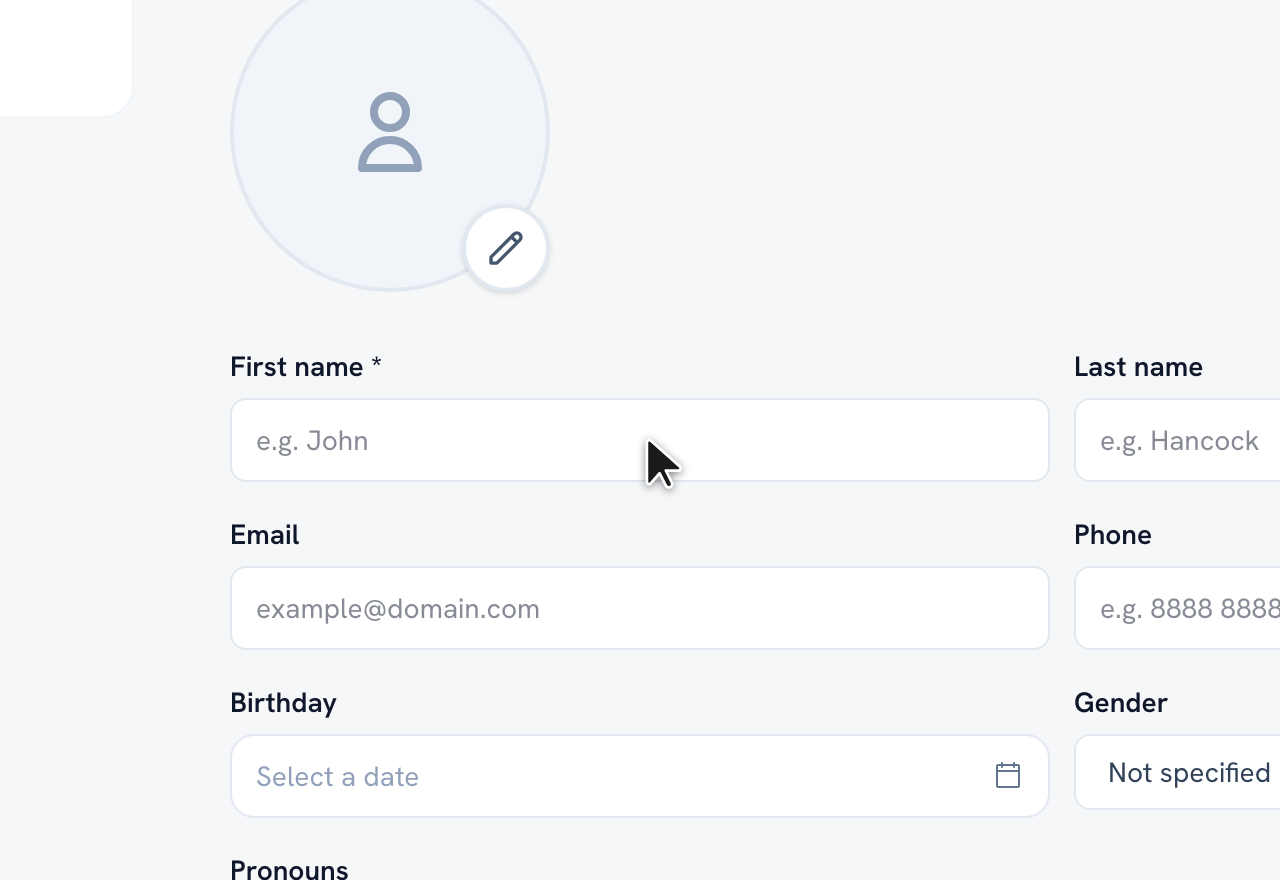
-
Add notes, tags, or extra details from the Additional info and Settings sections if you need them.
-
Click Save.
Tip: Your progress is saved as a draft, so you can leave and finish adding a client later.
Recommended articles
Thanks for your feedback!
Was this guide helpful?