

Back
For professionals
Calendar and schedule
Block time off
Block time off
Block out lunches, breaks, meetings, or any time you're not available for bookings.
-
On your Calendar, click Add in the top-right and choose Blocked time.
Go to Calendar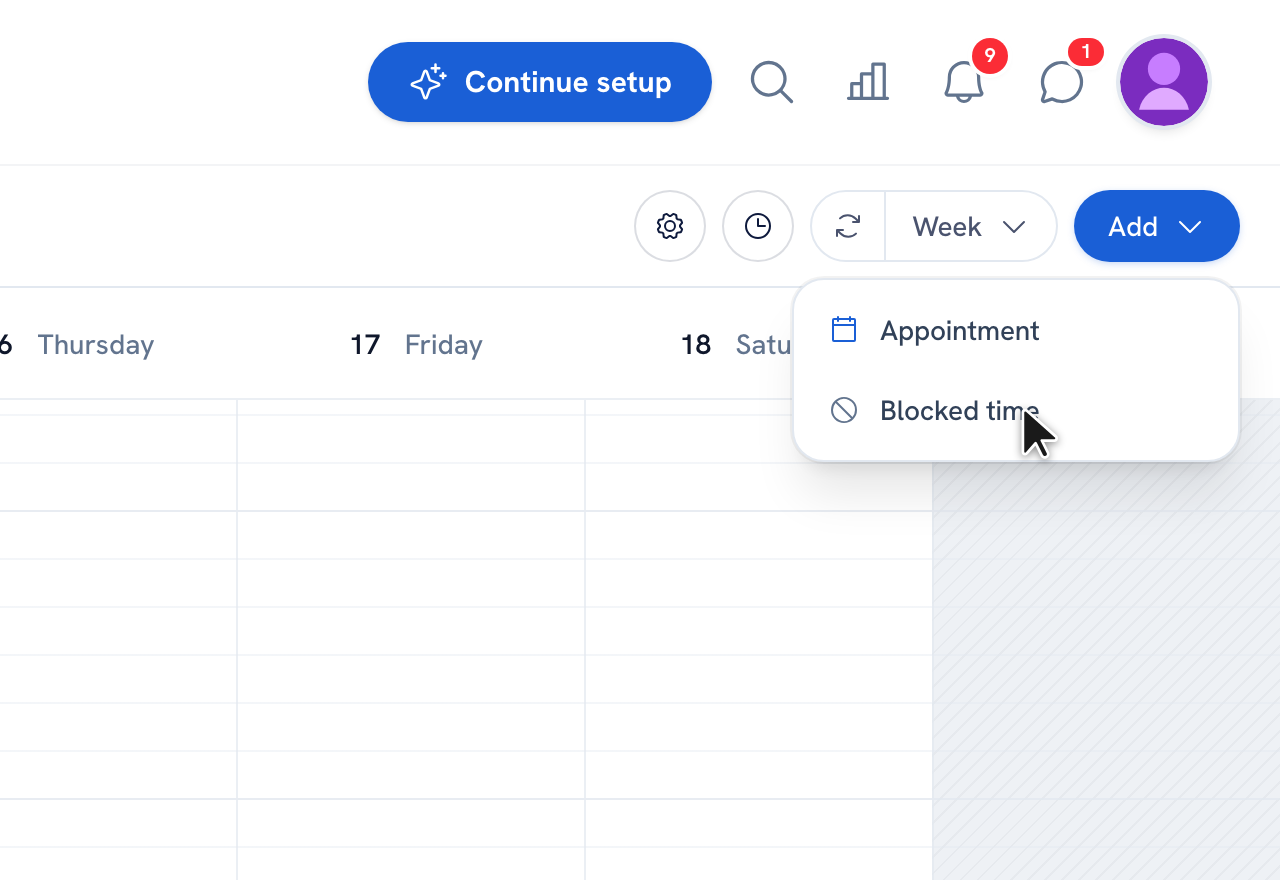
-
Pick a block type — Lunch, Training, Meeting, or Custom — or create a new type. Add an optional title, then set the date, start time, and end time.
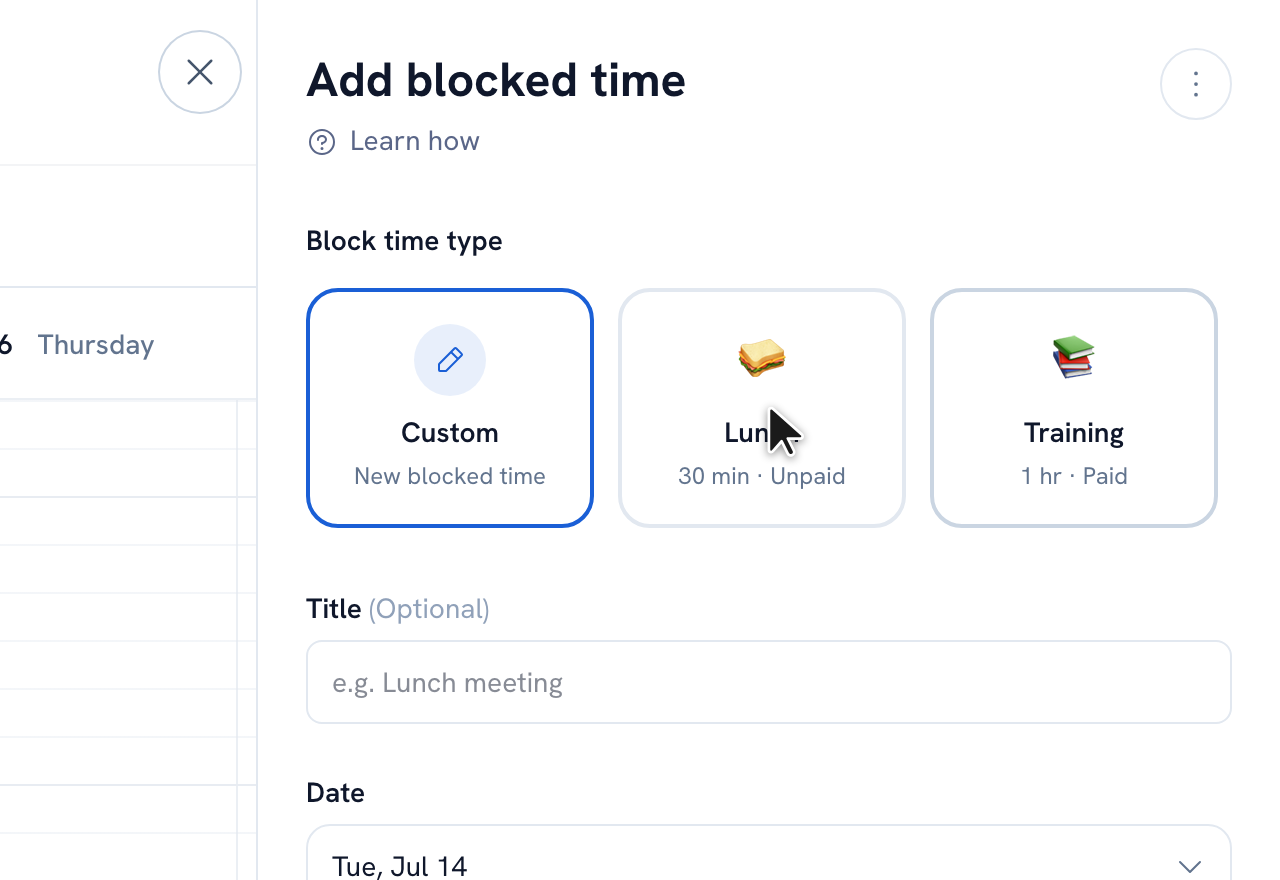
-
If you have a team, choose which team member the block applies to.
-
To repeat the block, set a frequency: Weekly, Every 2 weeks, or Monthly, then click Save.
Tip: Turn on "Online booking allowed during blocked time" if you still want clients to be able to book that slot online.
Recommended articles
Thanks for your feedback!
Was this guide helpful?