

Create an appointment
Appointments are the bookings you add to your own calendar — for clients who call, message, or walk in. Here is how to add one from start to finish.
-
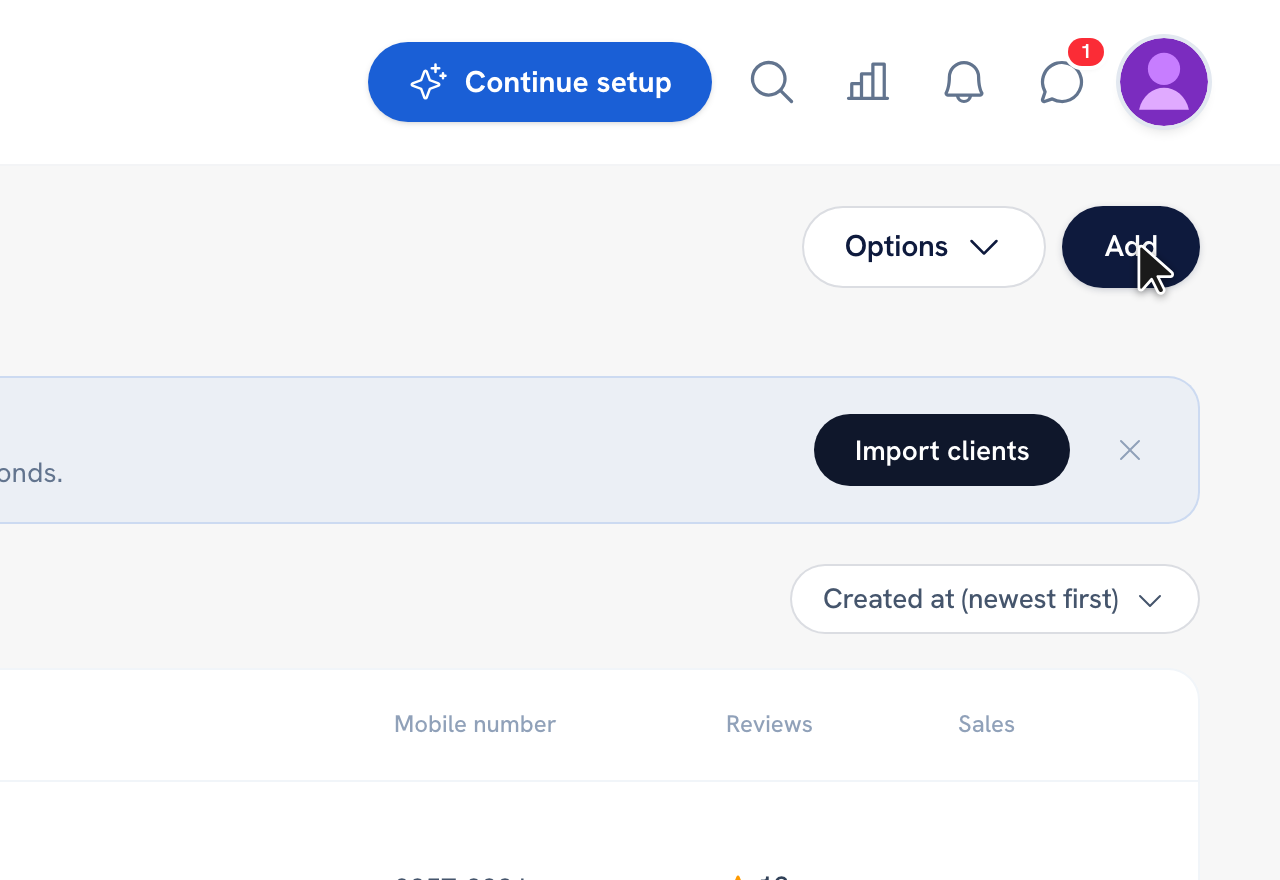
Open your Calendar and click the Add button in the top-right, then choose Appointment.
Go to Calendar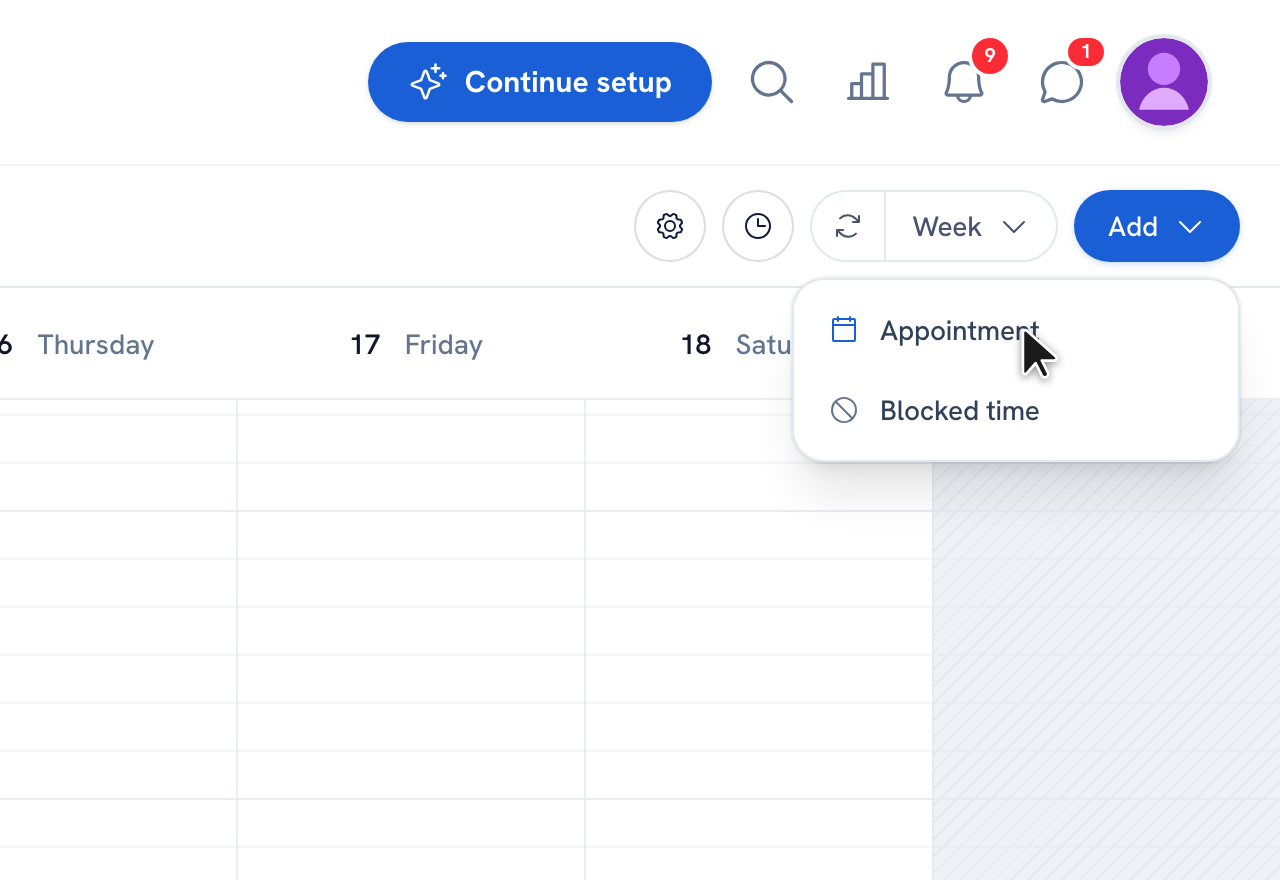
-
Click the slot on the grid where the appointment should start, then select a service from the list — search by name if you have many, and add classes, events, or a free-form Other line if you need to.
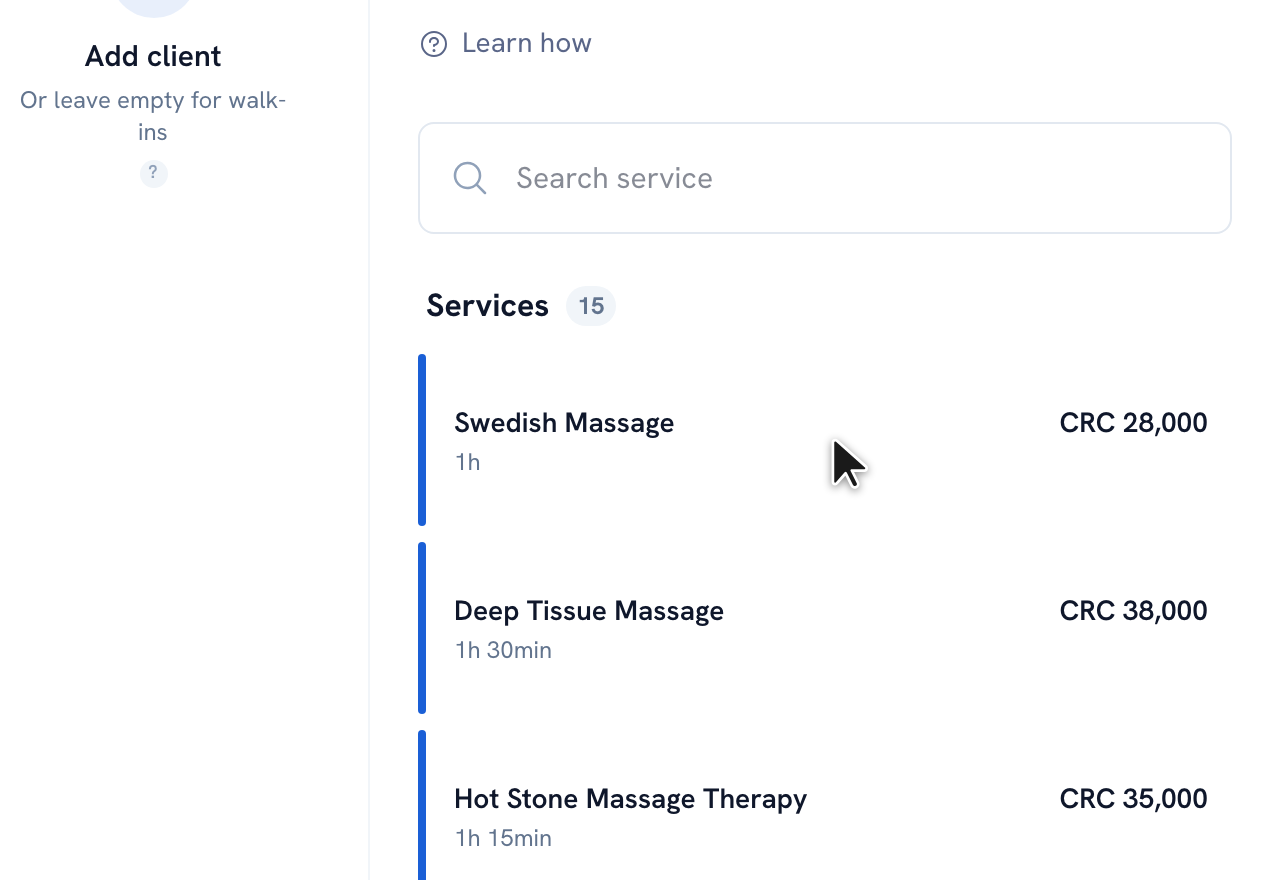
-
In the summary, assign a team member to the service if you work with a team — leave it as No preference to book it for yourself — and use Add service to include more.
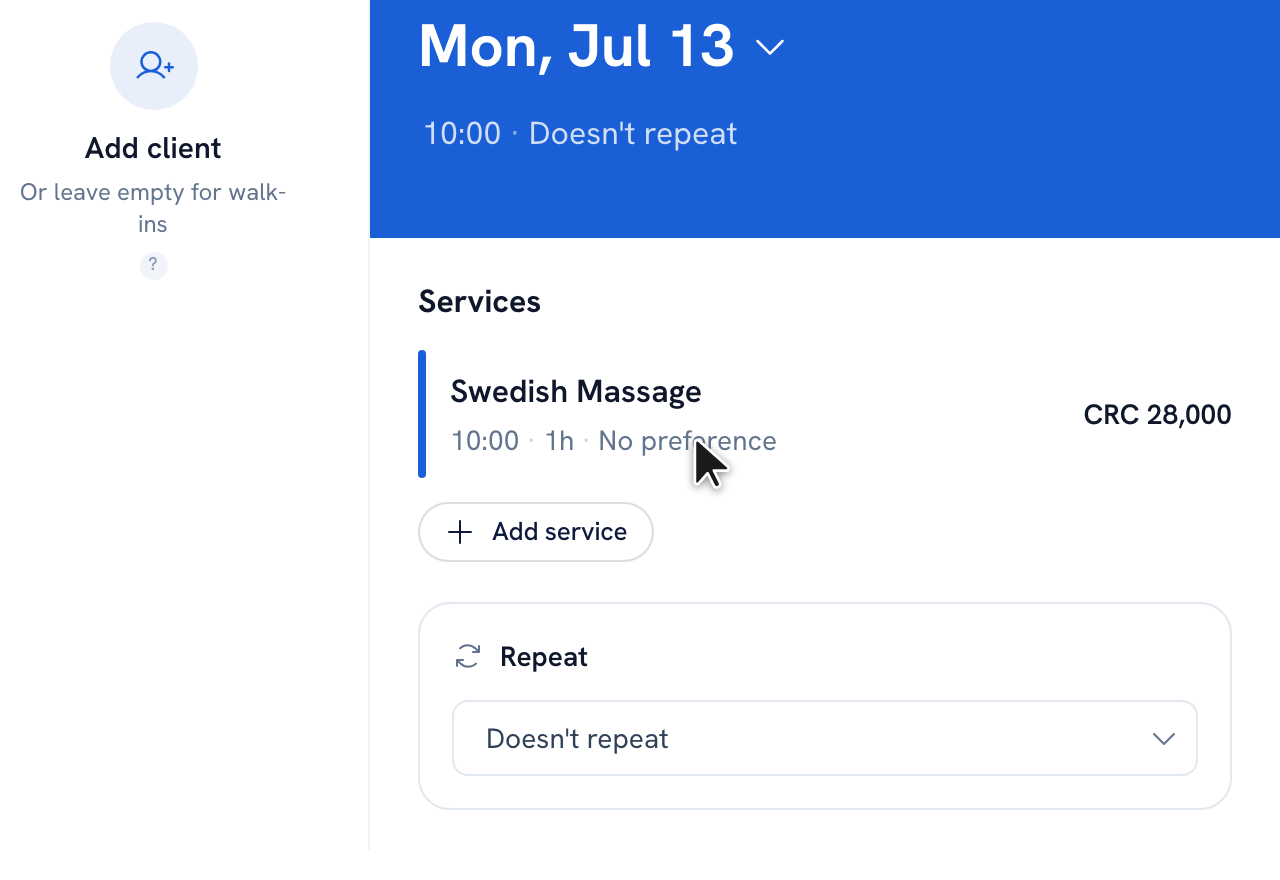
-
Check the date and time at the top of the summary. Click the date to move the appointment to another day.
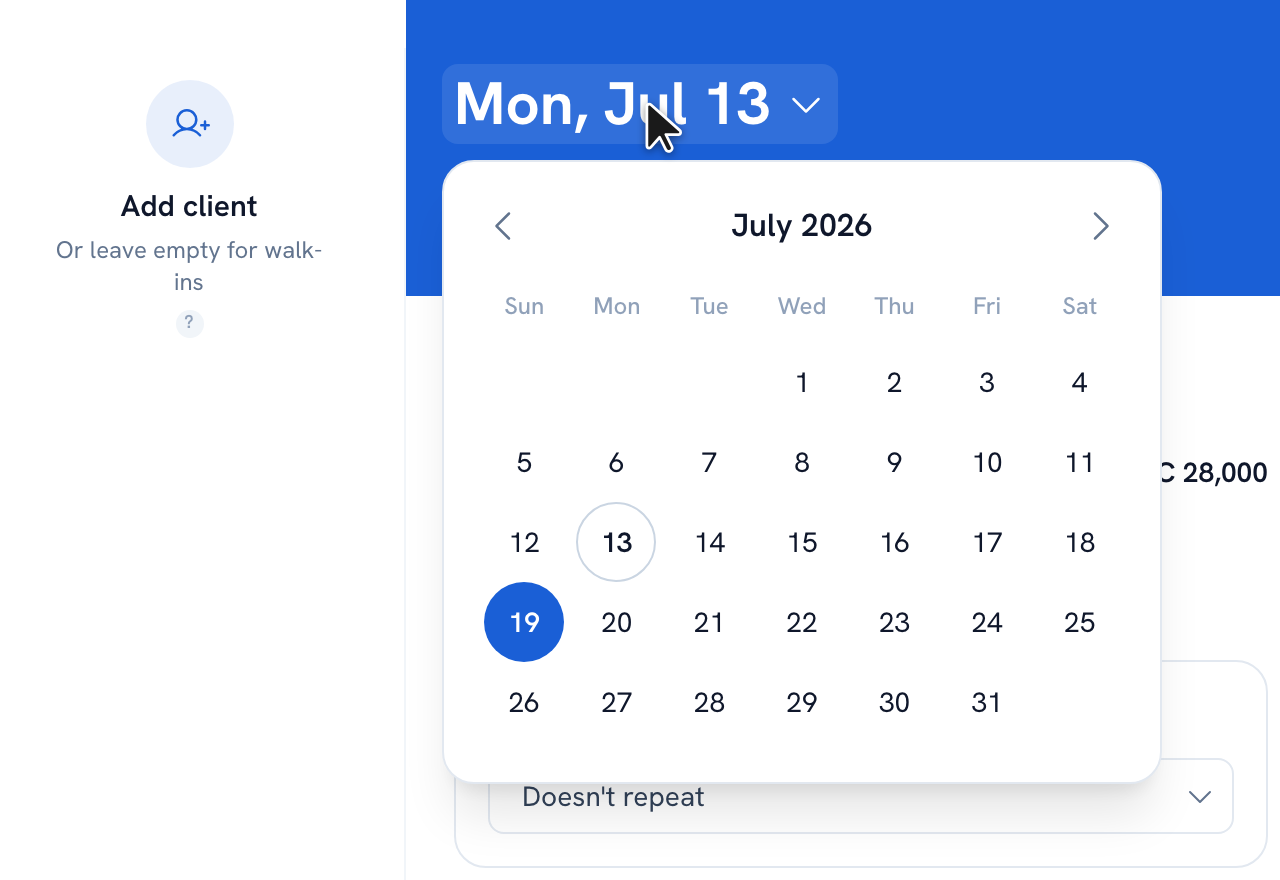
-
Add the client from the Add client panel on the left — search your client list, add a new client, or mark the booking as a walk-in.
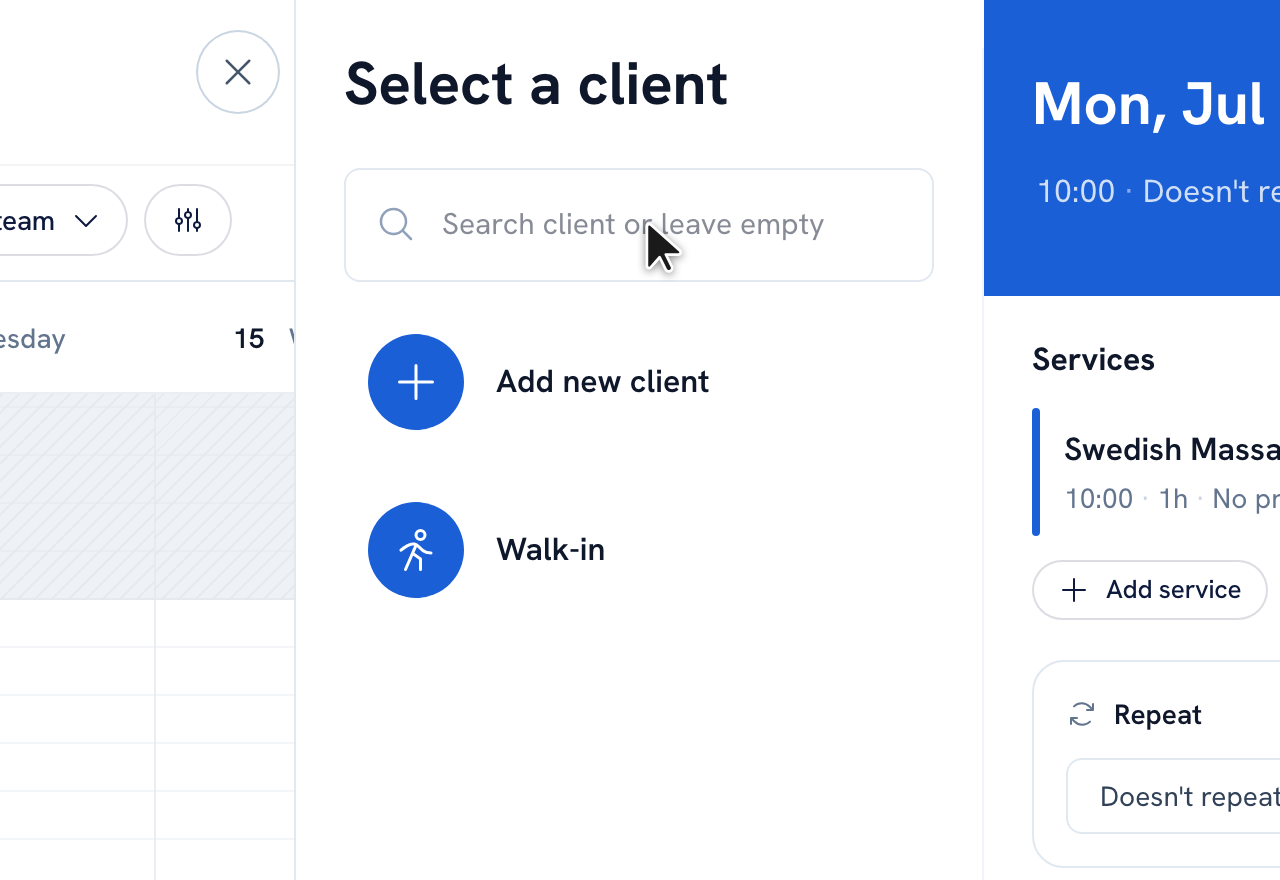
-
Review the summary and click Save. Your appointment now shows on the calendar.
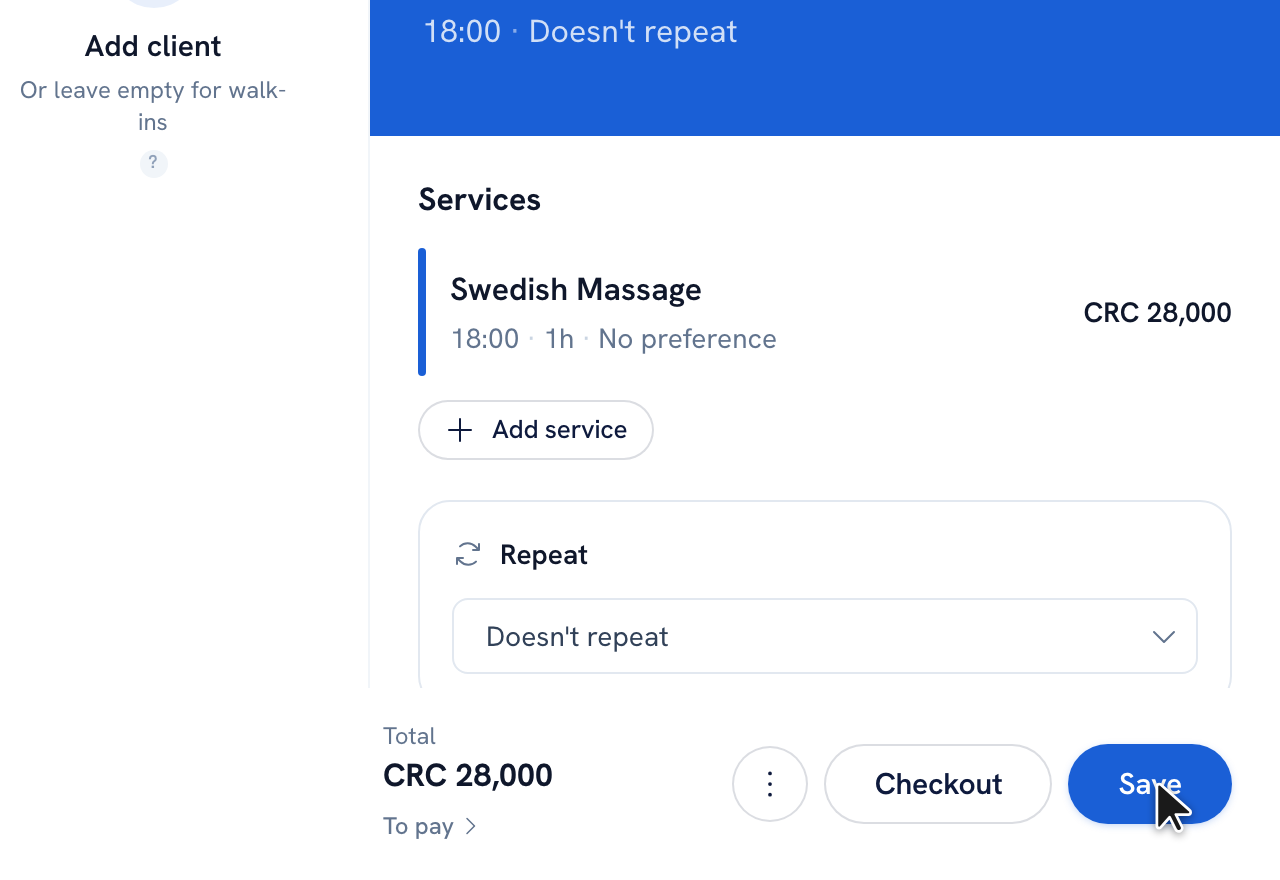
Tip: Leave the client empty for walk-ins. If a team member is already busy at that time, WellFred shows an availability warning and blocks the save until you pick a free slot.
FAQ
Can I book an appointment for a client who isn't in my list yet?
What happens if the team member I pick is already busy?
Can one appointment include more than one service?
Recommended articles
Thanks for your feedback!
Was this guide helpful?