

Back
For professionals
Events
Dates, times, and the booking window
Dates, times, and the booking window
An event can run for one day or several, and on a multi-day event the first and last day can start and end at different times.
-
Open the event and go to Schedule.
Go to Event menu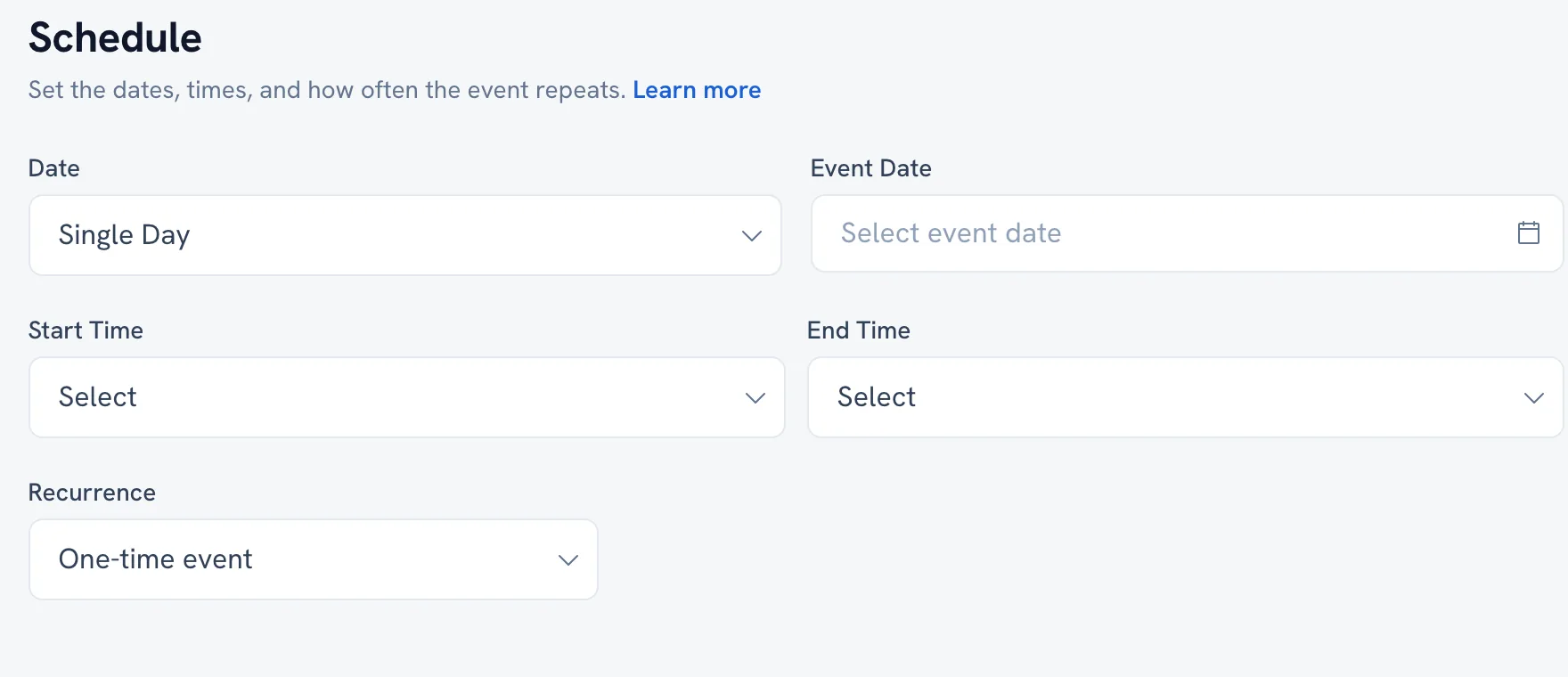
-
Under Date, choose the kind of date.
-
Set Start time (first day) and End time (first day).
-
For a multi-day event, set Start time (last day) and End time (last day) as well.
-
To control when bookings are accepted, turn on Limit between specific dates and set Available from and Available until.
Tip: Available from and Available until control when people can BOOK — not when the event runs. They are two different calendars.
FAQ
My event is saved but nobody can book it. Why?
Check the booking window first: Available from may still be in the future. After that, check Online booking is on.
Recommended articles
Thanks for your feedback!
Was this guide helpful?