

Back
For professionals
Classes
Run parallel groups with cohorts
Run parallel groups with cohorts
Cohorts let several groups share the same time slot. Each cohort keeps its own roster, its own capacity, and optionally its own price.
-
Open the class and go to Cohorts.
Go to Class menu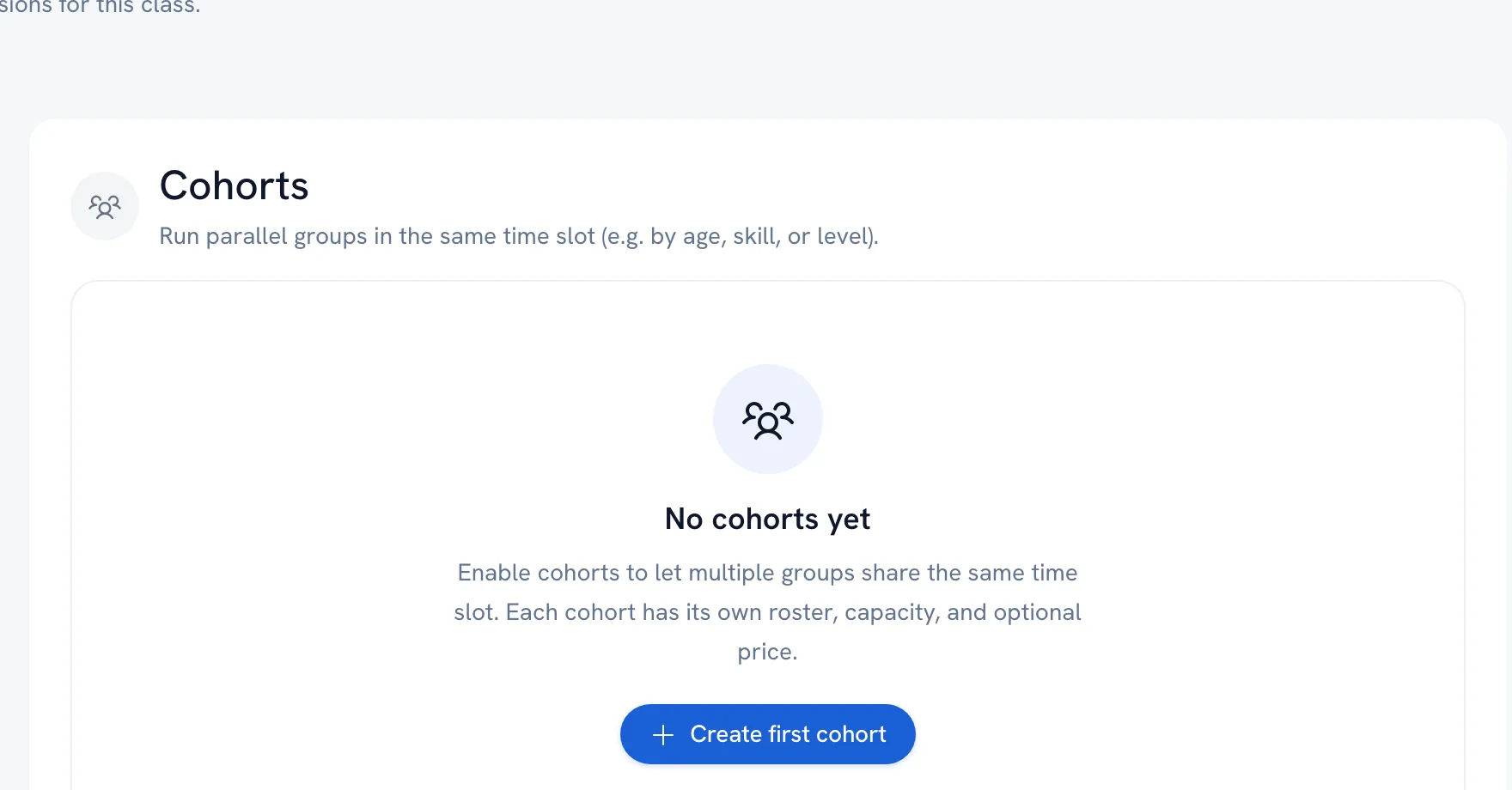
-
Create the first cohort and name it after the group it holds — Beginners, or Ages 8-10.
-
Give it a capacity, and a price if it differs from the class price.
-
Add the other cohorts and put them in the order clients should see them.
-
Save each cohort. Announcements only work once a cohort is saved.
Tip: Deleting a cohort affects the enrollments inside it. If you only meant to change the name, rename it instead.
FAQ
Do cohorts need their own sessions?
No — that is the point of them. Cohorts run in the same time slot and share one schedule.
Can I message just one cohort?
Yes. Each saved cohort has its own announcements, so the message reaches only the people in that group.
Recommended articles
Thanks for your feedback!
Was this guide helpful?